Free Wi-Fi QR Code Generator
A Wi-Fi QR code contains the network name, the security type and the password as plain text inside the pattern. Phones read it and offer to join the network.
- No signup
- Free commercial use
- No watermarks
What should the code do?
Join a network without typing the password.
Let’s make your Wi-Fi code.
Fill in your details. Your preview updates as you type.
Make it yours optional
Your colours, your logo, your finishing touch.
Start from a design template (optional)
A template only sets colours, module shape, error-correction level and the wording around the code. Whatever you have typed stays exactly as it is, and you can change every part afterwards.
Colours & pattern (optional)
Higher levels recover from more damage but make the code denser. A centred logo needs Q or H.
Logo (optional)
Upload your logo
Add your brand to the centre of your QR code, or place it above or below. Always test the final code before printing.
PNG, JPG or WebP · Up to 2 MB · Stays on your device
Caption under the code & call-to-action (optional)
Printed below the symbol. Long text wraps onto up to four lines.
Captions and call-to-action bars are drawn outside the code, so the four-module quiet zone stays clear. Every download contains exactly the artwork shown in the preview.
How to make this code
- 1
Type the network name exactly as it is broadcast — capitals and spaces matter.
- 2
Choose the security type and enter the password. Spaces are kept exactly as typed; use the eye button to check it.
- 3
Print it for the counter or the guest room, and test it on both an Android phone and an iPhone.
Printable Wi-Fi cards that work
Three sizes that fit how guests actually look for the Wi-Fi. Each starts from the guest Wi-Fi design: deep green, “Guest Wi-Fi” above the code and “Scan to join our Wi-Fi” below it. Every word is editable.
Counter card
A6 · 105 × 148 mm · code about 40 mm wide
Next to the till or on a reception desk.
Use this design: Counter cardRoom card
A7 · 74 × 105 mm · code about 35 mm wide
Bedside table or welcome folder in a hotel or homestay.
Use this design: Room cardTable sticker
60 × 60 mm label · code about 30 mm wide
One per café table, beside the menu code.
Use this design: Table sticker
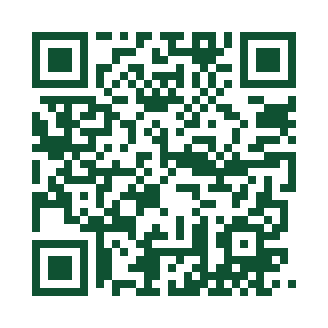
The example code joins a made-up network called “Cafe Guest”. Code widths are starting points — print one and scan it from where a guest will stand or sit before printing the rest.
How guests join on iPhone and Android
iPhone and iPad
- Open the Camera app and point it at the code.
- Tap the “Join network” notice that appears.
- Tap Join. The password is filled in automatically.
Android
- Open the Camera app or Google Lens and point it at the code.
- Tap Connect (or the network name) when it appears.
- No prompt? On most phones running Android 10 or later: Settings → Wi-Fi → the QR icon next to “Add network”, then scan.
Test on both an iPhone and an Android phone before you laminate anything — prompts and menu names differ by make and model.
Your password is inside the code
A Wi-Fi QR code is not encrypted. The network name and password are stored as readable text, so anyone who photographs the code can read the password with a scanner app. That is fine for a guest network you are happy to share; it is not fine for the network your tills, cameras or office computers use.
- Turn on your router’s guest network and put that one in the code.
- Keep the card inside your premises — do not post it on social media or a website.
- If you change the password, print a new card and throw the old ones away.
- The code is made in your browser; we never receive your network name or password.
Wi-Fi QR code not working? Quick fixes
- Phone says it cannot join, or the password is wrong
- Network name and password are case-sensitive and must match exactly — use the eye button to check. For almost every modern router choose WPA/WPA2/WPA3; choose WEP only for very old equipment.
- Camera sees the code but nothing happens
- Some older phones need Google Lens or a scanner app. Make sure the whole code, including its white border, is in the frame.
- It joins, but there is no internet
- The code did its job. Check the router, or whether the network needs a sign-in page (common in hotels).
- The network is not found
- If the router hides its name, tick Hidden network before downloading. Also check the guest network is switched on.
- We changed the Wi-Fi password
- Make and print a new code — the old one still holds the old password and will stop working.
- Office network asks for a username
- Enterprise (802.1X) networks with a username and password per person cannot be joined with a standard Wi-Fi QR code.
Still stuck? Scan your printed code here to see exactly what it contains, or read why a QR code won’t scan.
Frequently asked questions
Can someone read my password from the code?
Yes. Anyone who photographs the code can decode the password from it — there is no secrecy in the format. Use it for a guest network you are happy to share, not for a private home or office network.
Does it work on every phone?
Recent Android and iOS cameras handle Wi-Fi codes natively. Older devices may need a scanner app, and some managed or enterprise networks cannot be joined this way at all.
Which download format is best for printing?
SVG is a true vector file: a printer or designer can scale it to any size without losing edge quality, so it is the best thing to hand to a print shop. The PDF here places a high-resolution image of the same artwork on the paper size you choose, which suits home and office printing at that size. PNG is for screens and for systems that only accept images. Whichever you pick, print one copy at the final size and scan that copy yourself before ordering a batch — no format can guarantee a scan on a given printer, material or light.